Crown Street, Wollongong, 2500

Emails Bouncing Back from Hotmail, Outlook or Live? Here's Why and How to Fix It
Melody Jaimon • November 11, 2026
Have your business emails suddenly started bouncing back when you send them to a Hotmail, Outlook or Live email address?
You're not alone, and it's not something you've done wrong.
Throughout November 2026, we've been helping businesses whose emails to Microsoft addresses are suddenly being rejected. Some use Google Workspace, some use Microsoft 365, and plenty of them were working perfectly the day before.
The bounce-back message usually looks something like this:
550 5.7.1 Message rejected: Message lacks SPF/DKIM/DMARC Auth Records
If that looks like gibberish, don't worry. This guide explains what's going on in plain English, who can fix it and exactly what to send them.
The short version
Your email is missing some security settings that Microsoft now checks for. They're usually quick to add, they don't touch your website, and once they're in place your emails should start getting through again.
What's Actually Happening?
Every email you send carries your business name. Unfortunately, scammers can fake that name too, sending emails that look like they came from you.
To protect their customers, email services like Hotmail and Outlook check incoming emails for proof they really came from the business they claim to be from. That proof comes from three behind-the-scenes settings called SPF, DKIM and DMARC.
Microsoft already requires these settings from businesses that send large volumes of email, and lately smaller businesses are being caught out too. If your settings are missing or incomplete, Microsoft may simply refuse your email.
Not every bounce-back has the same cause. But if your message mentions SPF, DKIM or DMARC, these settings are the place to start.
Why Are Hotmail, Outlook and Live All Affected at Once?
Because they're all the same company.
Hotmail, Outlook.com and Live.com are all Microsoft's free personal email services. Microsoft bought Hotmail in 1997 and moved it over to Outlook.com in 2013, but kept the old addresses working. Today they all run on the same systems with the same security checks.
So when Microsoft tightens its checks, emails to all three are affected at once. Gmail and other providers may still accept your emails, because each provider runs its own checks.
SPF, DKIM and DMARC in Plain English

Think of sending an email like sending a parcel.
- SPF is the approved couriers list. It tells the world which email services are allowed to send email on your behalf.
- DKIM is the tamper-proof seal. It adds a digital signature to every email so the receiver knows it really came from you and hasn't been changed along the way.
- DMARC is the instructions on the box. It tells the receiver what to do if an email fails the other checks.
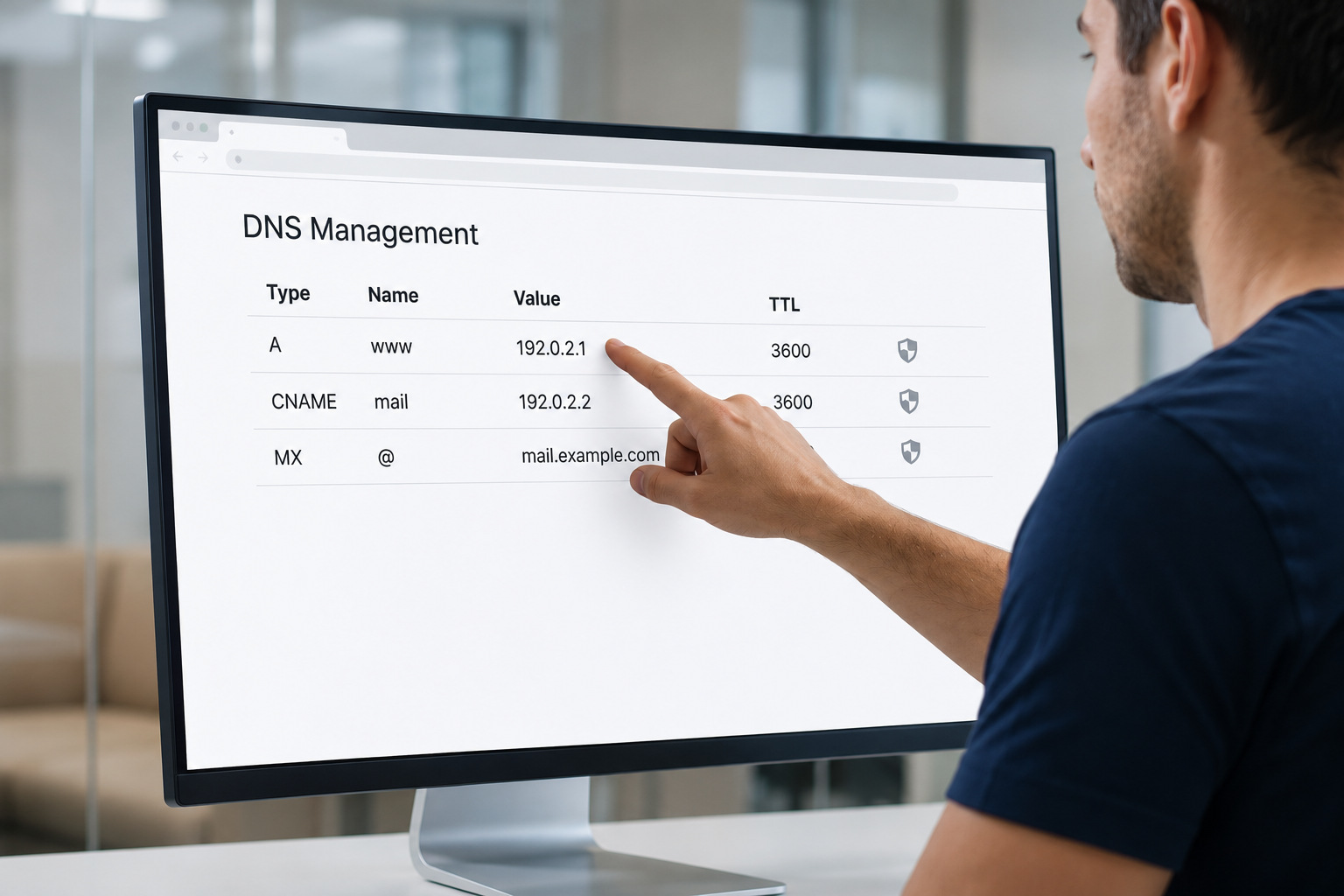
All three are stored in your domain's settings (called DNS), which works a bit like your business's listing in the internet's phone book.
Want the full explanation? Our guide to SPF, DKIM and DMARC explained walks through each one, with step-by-step setup for Google Workspace and Microsoft 365.
What Should You Do Right Now?
Step 1: Read the bounce-back message
Open the bounced email and look for the words SPF, DKIM or DMARC. If they're there, this guide applies to you. If not, the cause may be something else, so pass the full message on to whoever manages your email.
Step 2: Work out who manages your email
This is the step that trips most people up. Your website, your domain and your email all carry your business name, but they're often looked after by different companies.
Ask yourself: who set up our email accounts? Who do we call when someone needs a new email address or forgets their password? That's usually your email administrator. It could be:
- Your IT support company
- A staff member who manages Google Workspace or Microsoft 365
- The company you bought your email through, such as GoDaddy
- Your website provider, if email is part of your package
Step 3: Send them the checklist below
Forward this article to them, or copy the checklist below. It has everything they need.
Step 4: Send a test email
Once the settings are added, wait a few hours, then send a test email to a Hotmail or Outlook address (a friend's or family member's is fine). If it arrives, you're sorted. If it still bounces, let your email administrator know so they can dig deeper.
Checklist for Your IT Person or Email Administrator
Hi, our emails to Hotmail and Outlook addresses are bouncing with an SPF/DKIM/DMARC error. Could you please check the following for our domain?
If we use Google Workspace:
- SPF: One TXT record at @ that includes Google, for example v=spf1 include:_spf.google.com ~all. Please update our existing SPF record rather than adding a second one, and include any other services that send email for us.
- DKIM: Generate the record in the Google Admin Console under Apps → Google Workspace → Gmail → Authenticate email, publish it in our DNS, then click Start authentication. See Google's DKIM setup instructions.
- DMARC: If we don't have one, add a TXT record at _dmarc with the value v=DMARC1; p=none;
If we use Microsoft 365:
- SPF: Usually v=spf1 include:spf.protection.outlook.com -all, or v=spf1 include:secureserver.net -all if our Microsoft 365 is through GoDaddy. Please check our existing record first.
- DKIM: Get our two CNAME records (selector1._domainkey and selector2._domainkey) from the Microsoft Defender email authentication settings, publish both in our DNS, then turn on DKIM signing. See Microsoft's DKIM setup instructions.
- DMARC: If we don't have one, add a TXT record at _dmarc with the value v=DMARC1; p=none;
Please don't change our MX records, add duplicate SPF or DMARC records, or copy DKIM values from another domain.
Website Company or IT Company: Who Fixes What?
Many business owners assume their website company looks after everything with their business name on it. Often that's not the case.
- Your website provider looks after your website and, often, your domain and its DNS settings.
- Your email administrator (often an IT company) looks after your email accounts, passwords and the email service itself.
For this problem, the two may need to work together. Your email administrator gets the correct settings from inside your email account, and whoever manages your domain adds them. Sometimes that's the same company. Sometimes it isn't.
So start with whoever manages your email. They can tell you exactly what's needed and pass the details on to your website provider if required.
Frequently Asked Questions
The Bottom Line
If your emails have stopped reaching Hotmail, Outlook or Live addresses, don't panic. Check the bounce-back message, find out who manages your email and send them the checklist above. In most cases it's a quick fix that doesn't touch your website at all.
Already a Love My Online Marketing Client? We've Got You!
If we manage your email, get in touch and we'll investigate. If your email is managed elsewhere, we're still happy to help you work out who needs to do what, and we'll add any settings needed to the domains we manage.
We might not look after every part of your technology, but we're always here to help our clients where we can! 🧡


Love My Online Marketing has 10+ Years of working alongside businesses and helping them grow. Discuss your options for online success from website Design and Development through to Google Marketing.
Do you want more traffic and business leads?
Love My Online Marketing is determined to make a business grow. Our only question is, will it be yours?